Appearance
Alerts
Alerts draw attention to market activity or a change in a Dojo setup. They do not place orders or guarantee a direction.
Alert families
| Family | What it highlights |
|---|---|
| Surge | Directional momentum, with 5m, 15m and 60m labels and V2 variants. |
| Scout | Developing upward or downward momentum. |
| Raid | Potential reversals around a recent downward or upward move. |
| Whale | Unusual volume activity and its directional context. |
| Catcher and contrarian | Long-bias monitoring around sharp sell-offs. |
| Dojo | New zones, price entering a zone, price reaching an entry, and how a plan ended. |
The available presets in Settings → Alert Rules are the reference for your notification choices. A preset can exist without producing an alert in the current market conditions.
Choose notifications
- Open Settings → Alert Rules.
- Enable the built-in alert types you want to receive.
- Configure Sound Notifications and Browser Notifications as needed.
- Use Test Sound to check audio. Allow browser notifications when prompted.
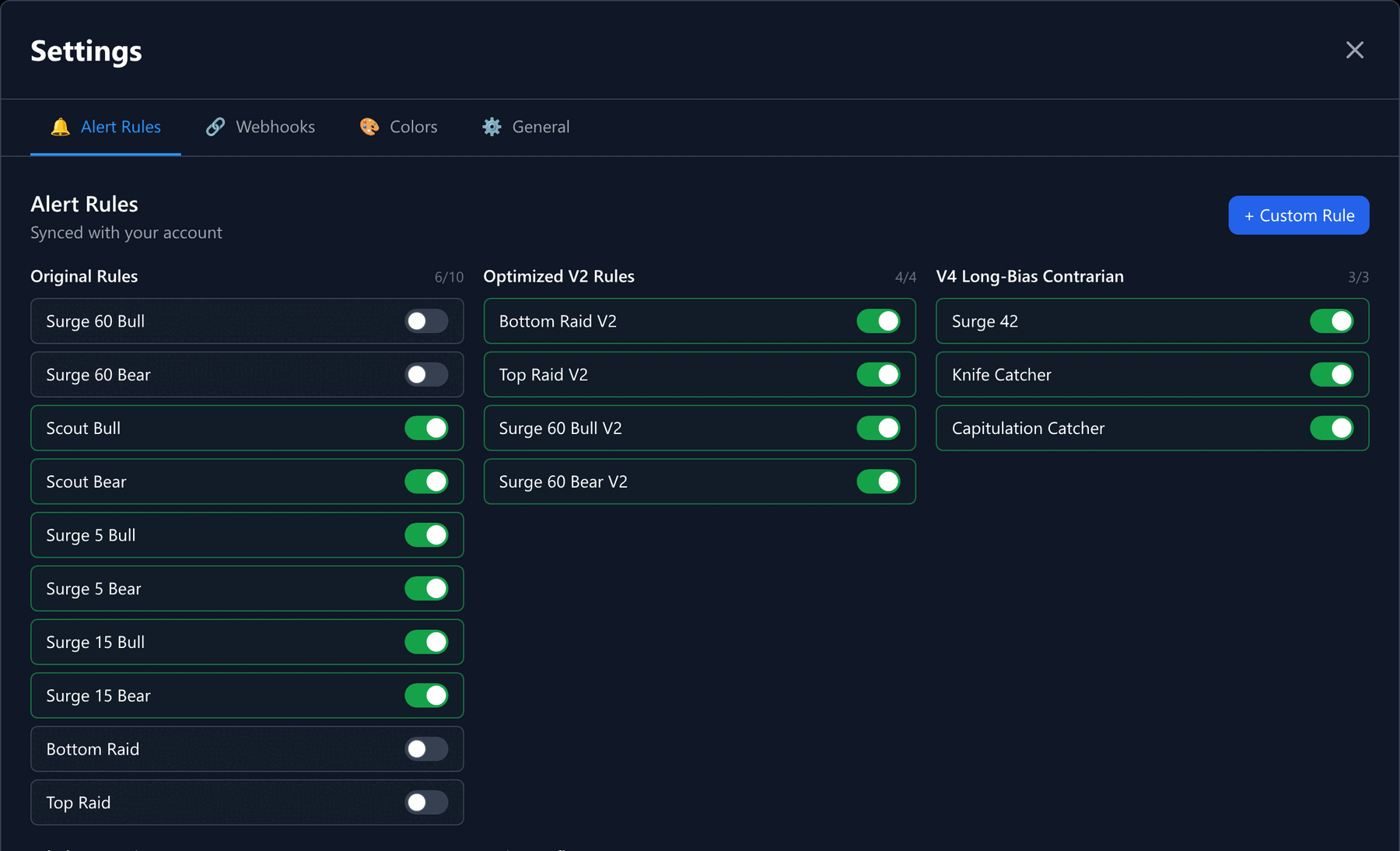
Settings → Alert Rules. Each group shows how many of its types you have enabled.
Built-in alert selections sync with your account. Notification permissions and browser preferences can differ between devices. Keep the app open and connected for browser notifications; they are not a background push service after you close the app.
Review history
Open Alert History to see recent activity grouped by coin. Rows show alert badges, counts and the latest alert time. Select a row to inspect the chart and timeline; the chart's Alerts button controls markers.
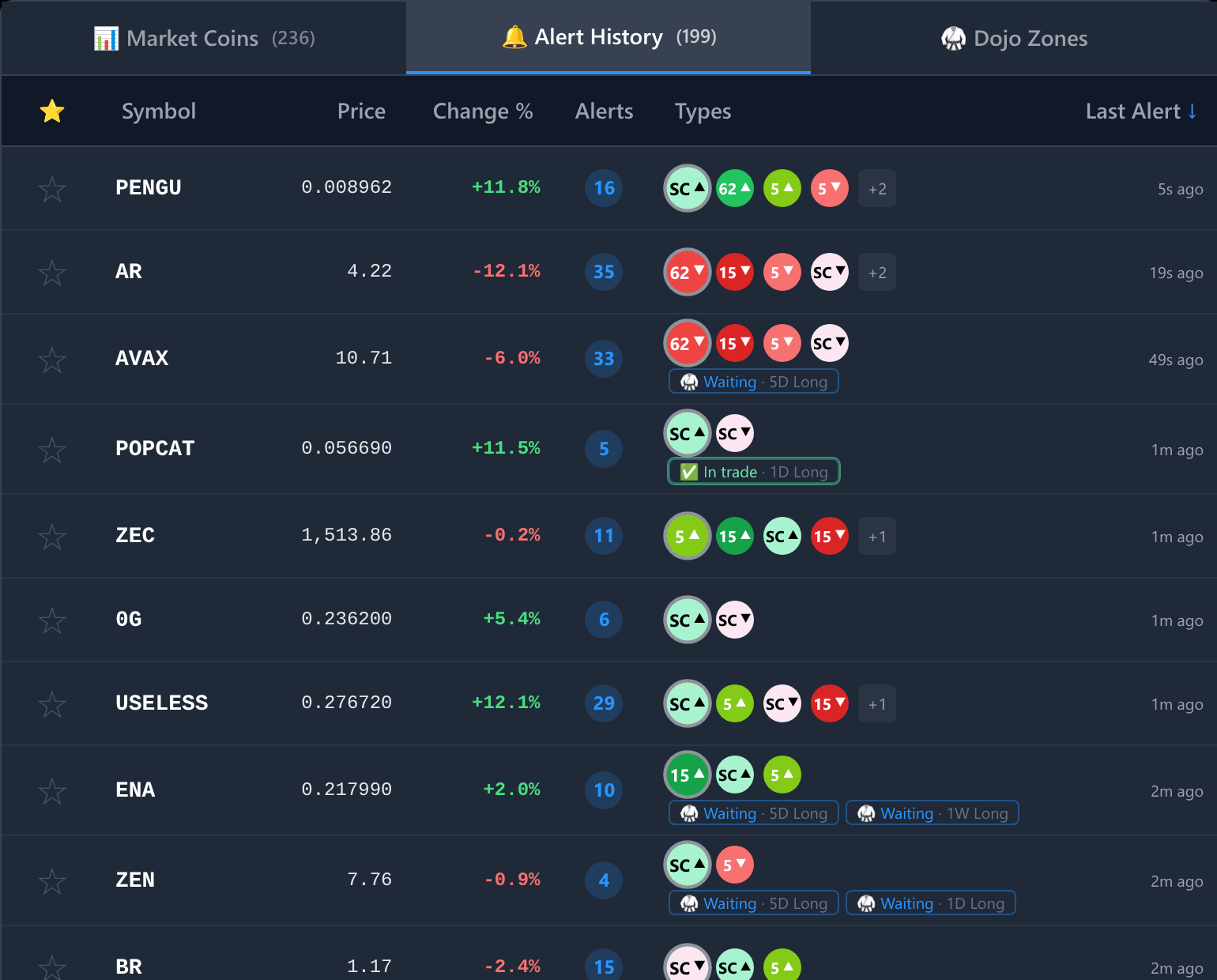
Alert badges record what fired. The squared chips below them are the coin's Dojo plans.
A coin with a Dojo plan also shows a separate line of plan chips — Waiting, In trade, or a recent Target reached, Stop taken or Invalidated. Selecting a chip, or a Dojo alert, opens that exact plan rather than only the coin. A coin whose plan is quietly waiting can appear with – instead of an alert count, because nothing fired. See Plans in Alert History.
A live notification, a historical alert price and the coin's current price represent different moments. An old alert does not become a new setup because it remains visible in history.
Presets and custom rules
Built-in presets can be enabled or disabled; their detection criteria are not editable in the app. A Dojo plan's closing events — target reached, stop taken and invalidated — are delivered without their own toggle in this list; they follow plans already published rather than introducing new ones. The + Custom Rule form is not connected to live custom-alert evaluation in the current app. Do not rely on a saved custom rule to produce notifications.
Delivery outside the app
Pro webhooks can send eligible alerts to your community or tools. Pro access is arranged and priced separately. Delivery can be delayed or interrupted; there is no guaranteed millisecond delivery time.